Admin
There are several functions that are available to admin users. If you have admin privileges, you will see the admin button in the nav-bar
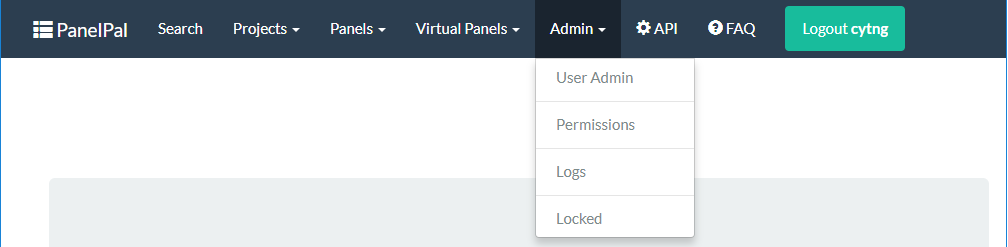
Each of the functions in the drop-down will be explained below.
User admin
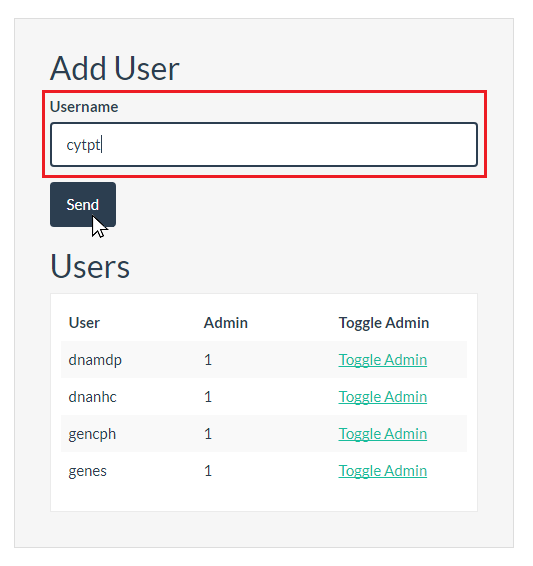
The user admin page allows admin members to add users and allow admin privileges. To add a new user, type their windows username into the box and click the “Send” button.
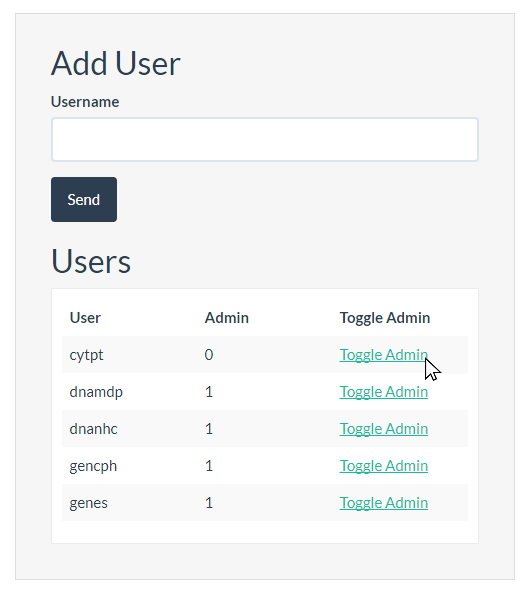
To change someones admin permissions, click the “Toggle Admin” link next to their username
Permissions
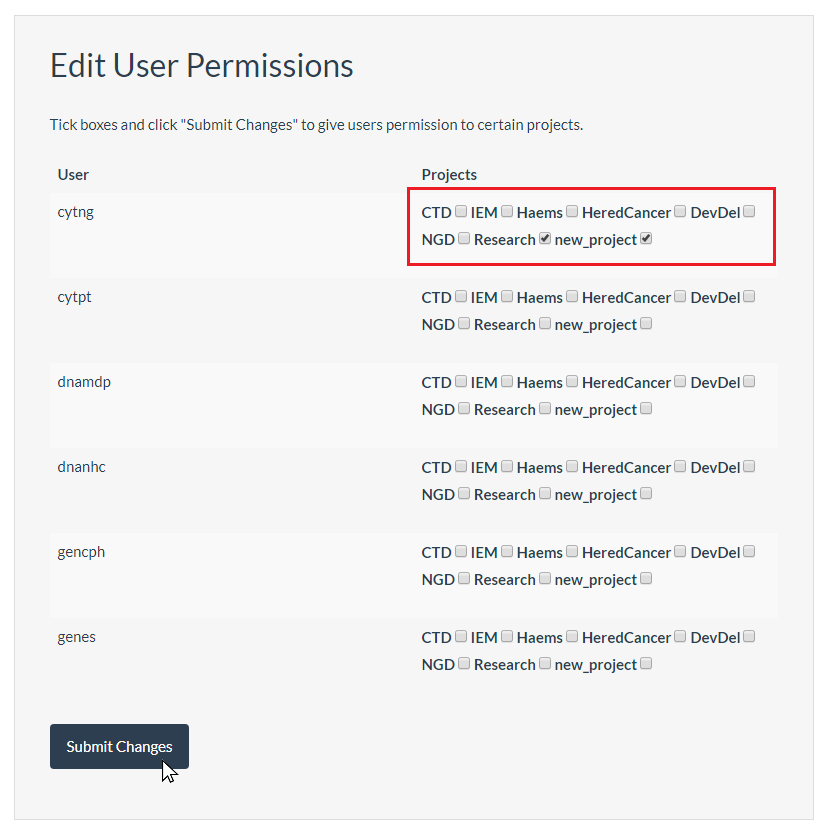
Admin members can add or remove other users from projects. To change a users permissions, go to the permissions page and check or uncheck the relevant boxes next to the username, then click “Submit Changes”.
Logs
PanelPal creates logs for each modification made to the database. These can be viewed on the logs page.
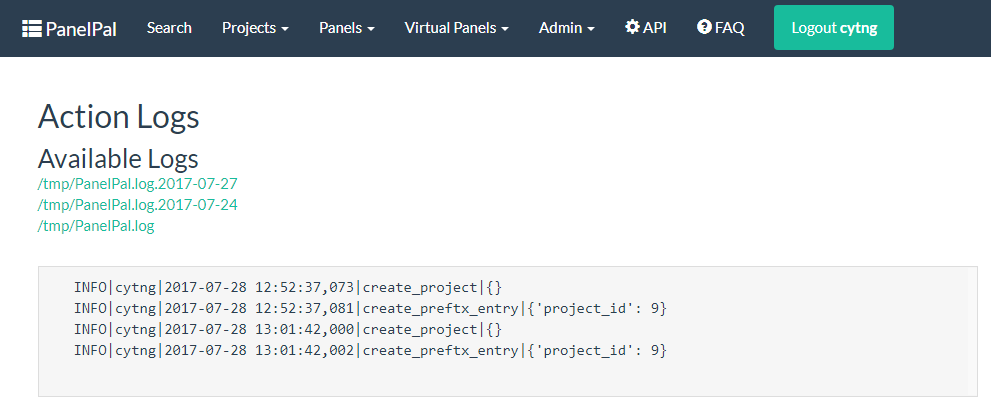
The default is to display the current log for the day. If you want to view a log from a previous day, select it from the links at the top of the page.
Locked panels
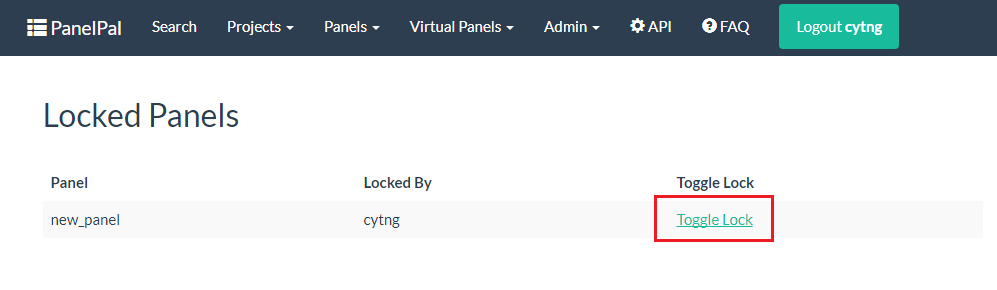
Admin users can unlock panels regardless of who ahs locked them. If a panel is locked and the user is not available to unlock the panel an admin user can go to the locked panels page through the admin menu.
To unlock a panel, click the “Toggle Lock” link next to the relevant panel.